
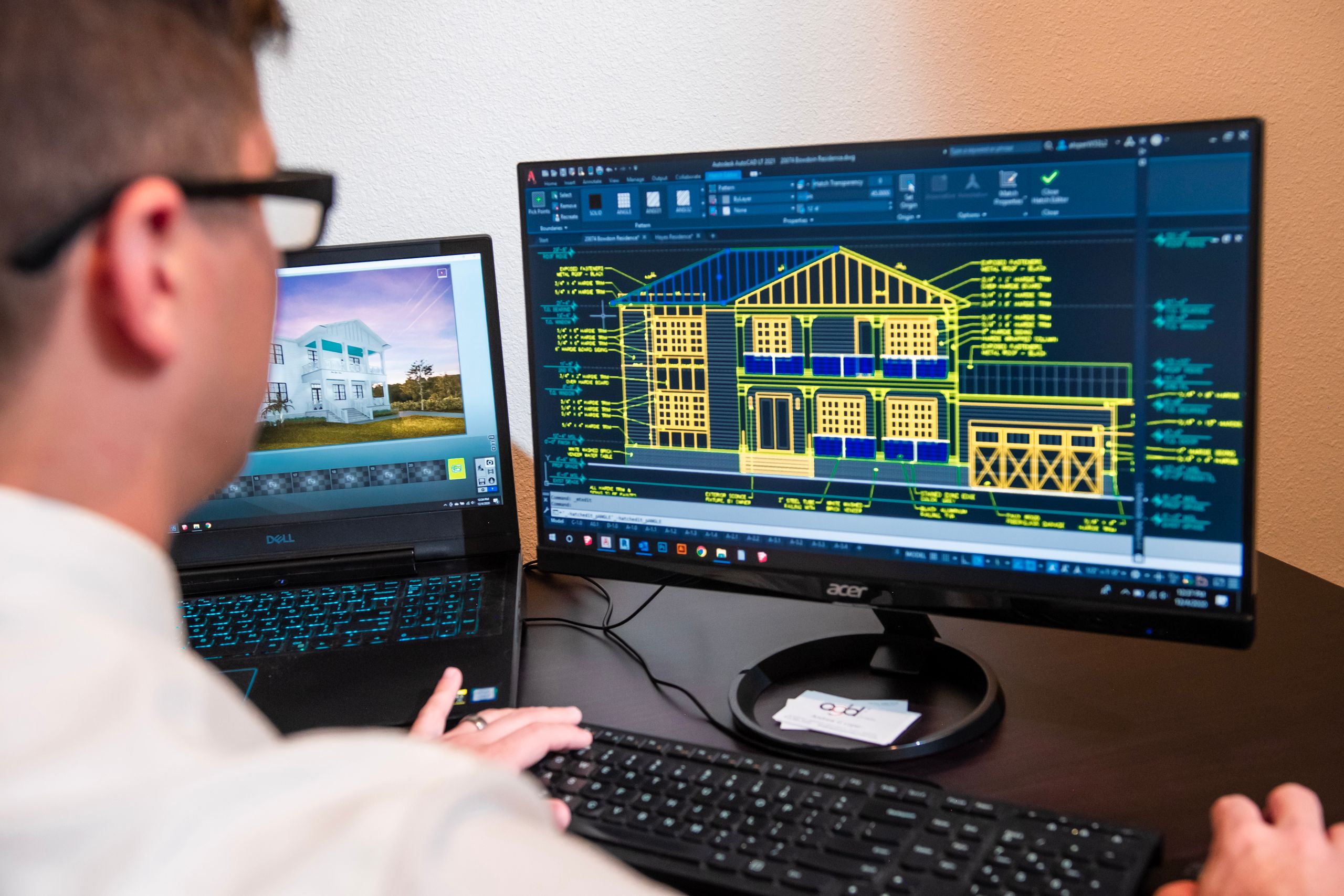
Fixing Slow Revit Over a Network Drive for Design Firms
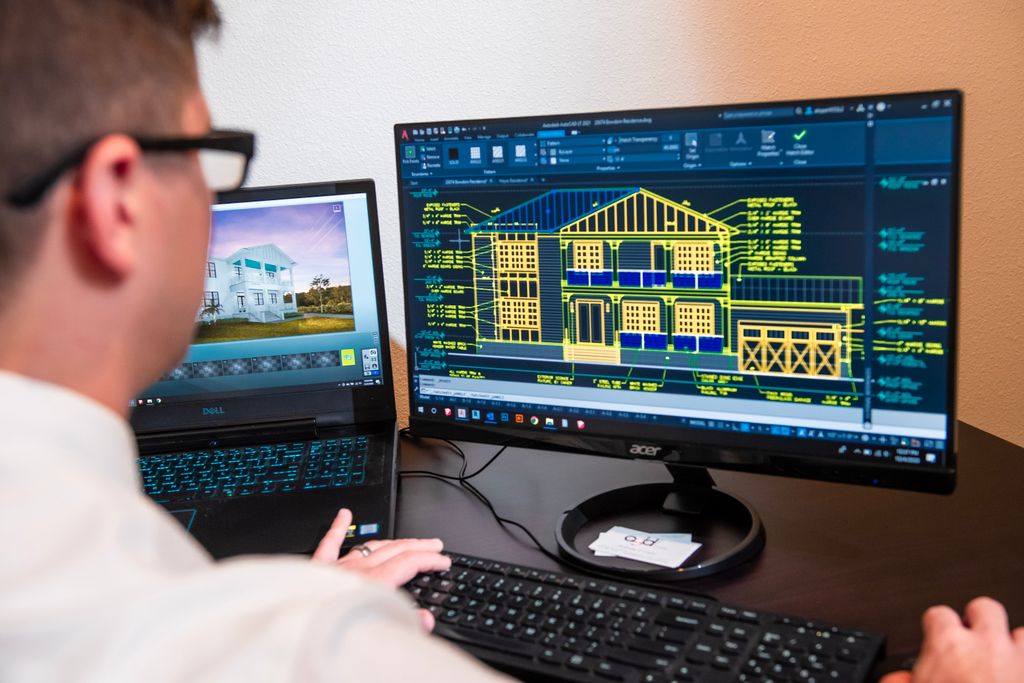
You hit “open” on a Revit or AutoCAD file. Then you wait. And wait. The spinning circle just keeps going. By the time the model loads, you have already checked your email and refilled your coffee.
If your files live on a shared network drive or a server, this is a common problem at small architecture and engineering firms. The good news is that slow Revit, slow AutoCAD, and “the server keeps crashing” are usually the same problem wearing three different masks. Fix the root cause and all three get better.
Here is the short version. Revit and AutoCAD feel slow over a network drive because they do not grab a file all at once. They make thousands of tiny read and write requests while you work, and every one of those crosses your network and comes back. Revit was never built to run a project straight off a shared drive, which is why it has worksharing. AutoCAD is different. It runs fine off a healthy share, so if AutoCAD is slow, something on the path is broken.
Updated September 2026. Several CAD managers pushed back on an earlier version of this post that told AutoCAD users to copy drawings to their desktop. They were right. That advice is gone, and the section below explains why it was dangerous.
What a “network drive” really is
A network drive is a folder that does not live on your computer. It lives on another machine, like a server in your closet or a network box (often called a NAS, which is short for “network attached storage”). Everyone on your team maps to that same folder so they can share files. You probably see it as a drive letter, like the S: drive or the P: drive.
That setup is great for sharing. One copy, everybody can reach it. We are glad you have a shared spot for your files, because the alternative (files scattered across ten desktops) is much worse.
But here is the catch. Your local hard drive talks to your computer almost instantly. A network drive has to send that same request down a cable, through a switch, over to the server, and back. Even on a fast office network, that round trip takes longer.
One note if that box is a NAS. Revit is built and tested against Windows file sharing, and Autodesk tells you to confirm with the vendor that the device “can fully support SMB and Windows networking protocols” (Autodesk Support). Plenty of small firms run a Synology with no trouble. But if Revit starts throwing strange errors on shared models, test that model on a Windows file server before you blame Revit.
Slow is not normal. It is fixable.
Why Revit and AutoCAD make it worse
Some programs open a file once and read the whole thing into memory. Revit and AutoCAD do not work that way.
Revit, in particular, is chatty. It opens a file and then keeps making thousands of small read and write requests while you work. For example, let’s say you open a model with linked files in it (other Revit models or DWG drawings attached to the main one). Revit has to go fetch each of those links too. If those links also live on the network, that is a lot of back and forth before you even start working.
Autodesk says this directly. Opening files straight from a network location is slow, and nested links on the network make it worse (Autodesk Support).
Saving is its own headache. When Revit saves to a network share, it uses something called “write through.” In plain English, Revit refuses to call the save “done” until every last bit of the file has landed on the server’s disk. It skips the shortcut Windows normally uses to speed saves up. So your save bar crawls (Autodesk Support).
The right way to work on Revit files: local, then sync
Here is the rule that fixes most of this. You should not open and edit a Revit project straight off the network drive. You should work on a local copy on your own computer, and let Revit sync your changes back to the shared file.
This is what Revit calls worksharing. It works like this:
- One main file lives on the server. This is the central file.
- Each person makes their own copy on their own computer. This is the local file.
- You work fast on your local copy, because it is right there on your hard drive.
- Every so often, you hit “Synchronize with Central.” Revit sends only your changes back and pulls down everyone else’s.
So you get the speed of working locally and the teamwork of one shared model. You are no longer dragging the whole file across the network every time you click something.
Two habits make this much safer. Open the version of Revit the project uses first, then open the project from inside it, instead of double clicking the file in Windows. A newer Revit will upgrade an older project, and once it saves in the newer version there is no going back. And sync before you go home. Your local file sits on your workstation, not the server, so it is usually not in your backup.
Worksharing only works on your office network
Here is the caveat that usually gets left out. File based worksharing is built for your local network. Not a VPN.
Autodesk is blunt about it. Worksharing “was designed for use in a local area network (LAN).” When ping time “increases beyond what would normally be seen on a LAN (0-2ms) timeouts, operation failures, and central model corruption are more likely to occur” (Autodesk Support).
Read that last part again. Not slow. Corrupt.
For example, let’s say one designer works from home two days a week. She maps the office drive over the VPN and syncs to central from her kitchen table. It will feel slow, and sooner or later it will eat the model. If you have people working outside the office, you need Revit Server or cloud worksharing, not a mapped drive over a VPN. We covered this in Why Revit Feels Broken When You Work From Home and VPN vs. Remote Desktop.

AutoCAD is different, and you should not copy drawings local
AutoCAD has no worksharing. No central file, no sync button. So the advice you will hear, and the advice an earlier version of this post gave, is to copy the drawing to your desktop, work on it, and copy it back. You should not do that.
Here is why. When a DWG sits on a normal file share and somebody opens it, AutoCAD writes a small lock file next to it. The next person who opens that drawing gets a warning:
“<path>\<file>.dwg is currently in use by: <username>. Would you like to open the file read-only?”
That warning is the only thing standing between your team and lost work. Copy the drawing to your desktop and it is gone. Two people can grab the same sheet Tuesday morning, both edit it all day, and both copy it back. The second one to finish silently erases the first one’s work. Autodesk describes this exact outcome when file locking stops working: “the last person to save overwrites all other user changes” (Autodesk Support).
Xrefs make it worse. A drawing with absolute paths loses its references when the file moves, so your sheet opens with outlines and file names where the base drawing should be (Autodesk Support).
So what should you do instead? Leave production drawings on the share, and fix the share. That is the rest of this post.
There is one exception worth keeping. Support files are fine to run local. Your profile, your templates, your block libraries, your plot styles, your standards files. Those get read constantly and edited rarely, and every reach across the network adds lag (CADnotes). Copying a standards file local is smart. Copying a live drawing local is how you lose a day.
Other reasons Revit runs slow over a network drive
Sometimes the slowness is not Revit’s fault and not AutoCAD’s fault. It is the road they have to drive on. Let’s check the road.
Antivirus scanning every request. This is the cheapest fix on the list, and it is easy to skip. Your security software inspects every one of those thousands of tiny reads and writes. Autodesk publishes a list of folders and file types to exclude, and their own guide for slow network drawings points right at it (Autodesk Support). Ten minutes, no money. Start here.
Your file share lives on your domain controller. A lot of small firms run one server that does everything. Active Directory, DNS, and the file share, all on one box. Autodesk says that is the worst place to put Revit files, because “by default Domain Controllers will disable write caching on the disk,” which makes that write through behavior even slower. Their recommendation is plain: “Host Revit central files on a dedicated server” (Autodesk Support).
Old network gear. A lot of firms are still running a switch and cabling that were fine ten years ago. Gigabit end to end is the target: gigabit cards at every desk, Cat5e or Cat6 cabling, gigabit switches, and at least one gigabit card on the server holding the central model. That is Autodesk’s own recommendation.
Here is the part we got wrong in the first version of this post. Going faster than gigabit usually does not help. The problem is thousands of tiny round trips, not the size of the pipe, and a 10 gigabit switch does not make a round trip any shorter. If you are already gigabit end to end and Revit still crawls, 10 gigabit gear will buy you very little.
Wi-Fi for heavy files. Wi-Fi is convenient. It is also slower and less steady than a cable, and every network recommendation Autodesk gives for worksharing is wired. Save the Wi-Fi for laptops and phones.
A tired server. If the machine holding your files is old, low on memory, or still running spinning hard drives instead of solid state drives (SSDs, which have no moving parts and are far faster), it cannot serve files quickly no matter how good your network is.
The workstation itself. A senior design manager made this point to us and he is right. Before you rebuild the network, look at the machine the person is sitting at. Not enough memory, a weak processor, or the wrong video card will make Revit feel slow no matter how fast your server is. Quick test: if one person is slow and everybody else is fine, it is usually that machine or its own connection, not the server. More on that in Civil 3D Running Slow? It Is Probably Not Your Computer.
Too much on one wire. If your file server, your backups, and your internet all fight over the same path at once, everything slows down. Sometimes the fix is moving the nightly backup to after hours.
Usually it is a mix of these, not one single thing. That is why “just buy a faster server” does not always fix it.
What about the cloud? (Autodesk Forma, OneDrive, Dropbox)
For Revit teamwork, Autodesk does offer cloud worksharing. The names changed in 2026, so here is the current map. Autodesk Construction Cloud is now Autodesk Forma. What used to be BIM Collaborate Pro is now Forma Design Collaboration. That is a paid subscription on top of Revit, and you need it to save a model to the cloud (Autodesk Support). Revit by itself will not do it.
It can work well, especially if your team is spread across more than one office. But it is not magic. Cloud models can be slow to open too, usually when your upload speed is weak or the model is huge (Autodesk Support).
Now the part people get wrong. You should not point Revit at a basic file sync folder like OneDrive or Dropbox and edit a live project there. Those tools were built to sync documents. They keep a cached copy on each person’s machine, so each person is really editing their own copy, and normal Windows file locks do not travel through them. Autodesk documents that problem directly, and the result is the one we already described. Last person to save wins, everybody else loses.
One correction, because we were sloppy about this before. Microsoft does not publish a warning about CAD files on OneDrive. Autodesk is the one documenting the locking problem, and Autodesk’s fix for AutoCAD is not “never use cloud storage.” It is to install the official sync client for your provider so file locking gets handled. For live Revit project files, keep them off consumer sync folders. More detail in CAD Files on OneDrive and SharePoint: What Works, What Corrupts.
A simple plan to speed things up
Here is the order we would tackle it in. Cheapest and safest first.
- Set your antivirus exclusions. Free, ten minutes, often the biggest single win. Do this before you buy anything.
- Get the file share off your domain controller. Revit central files belong on a dedicated file server.
- Stop editing Revit projects directly off the drive. Set up proper worksharing. On your office network only, never over a VPN.
- Leave AutoCAD drawings on the share. Do not copy production drawings to desktops. Do keep standards, templates, and block libraries local.
- Wire the heavy users. A real cable to anyone working on big models all day.
- Check the server’s health. SSDs, enough memory, not ancient.
- Check the workstations. Memory, processor, video card. Especially if only one or two people are slow.
- Check the network gear. Get to gigabit end to end. Do not buy faster than gigabit until everything above is done.
- Move backups to off hours. Do not let your nightly backup fight your team during the workday.
Being proactive here is a lot cheaper than being reactive. The reactive version is your team waiting on file opens every day, for years. That is real money and real frustration, and most people just learn to live with it because they think slow is normal. It is not normal. It is fixable.
Common questions
Should I copy a drawing to my desktop so it opens faster?
No. You lose the file lock that keeps two people from editing the same sheet, and the second person to copy it back erases the first person’s work with no warning. Copy standards files and block libraries local if you want. Leave production drawings on the share.
Will a 10 gigabit network fix slow Revit?
Usually not. Gigabit end to end is what Autodesk recommends, and the slowdown comes from thousands of tiny round trips. A bigger pipe does not make a round trip shorter. Fix antivirus exclusions, server disks, and workstations first.
Can we run Revit worksharing over a VPN?
No. Autodesk built file based worksharing for a local network and warns that past LAN ping times you get timeouts, failures, and central model corruption. For remote staff, use Revit Server or cloud worksharing.
Is it OK to keep Revit and CAD files in OneDrive or Dropbox?
For finished files, PDFs, and archives, yes. For live project files people are actively editing, no. Those services cache a copy per person and normal file locks do not pass through, so two people can quietly overwrite each other.
We are happy to look at it
We help small architecture and engineering firms keep the servers, network, and workstations behind Revit and AutoCAD running the way they should, so your team can focus on the work, not on watching a load bar. Based in East Tennessee. Serving firms nationwide. See who we work with.
If your files are crawling over the network, give us a call. We will look at how your files are stored, how they are opened, and where the real slowdown is hiding. No jargon, no scare tactics, just a clear answer.
Key takeaways
- Revit was never built to run a project straight off a shared drive. That is what worksharing is for, and it only works on your office network. Never over a VPN, where Autodesk warns you can corrupt the central model.
- Do not copy AutoCAD drawings to your desktop to work on them. You lose the file lock and somebody overwrites somebody else’s day. Fix the share instead. Standards files and block libraries are the one safe exception.
- Cheapest fixes first. Antivirus exclusions, getting the file share off your domain controller, server disks, and the workstation itself. Buying faster than gigabit is usually the last thing that helps.
Not sure how to fix Revit slow over a network drive?
A free 30 minute IT checkup gives you a clear picture of where your firm stands. No obligation, no sales pitch.
Sources: Slow performance opening Revit files from a network (Autodesk); Revit slow saving to SMB share (Autodesk); Revit support with network file servers or cloud storage (Autodesk); Revit worksharing network recommendations (Autodesk); AutoCAD file locking alert (Autodesk); AutoCAD slow on networked drawings (Autodesk); Cloud worksharing subscription (Autodesk); Autodesk Construction Cloud is now Autodesk Forma (Autodesk).
Written by Austin, Founder & Lead Technician, Aspen IT Group. Managed IT for small design firms and contractors. Based in East Tennessee. Serving firms nationwide. Rooted in reliability.




3 Comments