
Your Backup Might Not Work. Here Is How to Check in 10 Minutes.
Having a backup and having a backup that restores are two different things. Here is the 10 minute check any office manager can run, plus the one copy ransomware can’t reach.

You know the feeling of a slow file. You click open on a Revit model and wait. Annoying, but the file shows up. Now picture the other version. You click open and the folder is just gone. Every drawing. Every model. Every hour your team put in.
You think your backup will save you. Have you checked?
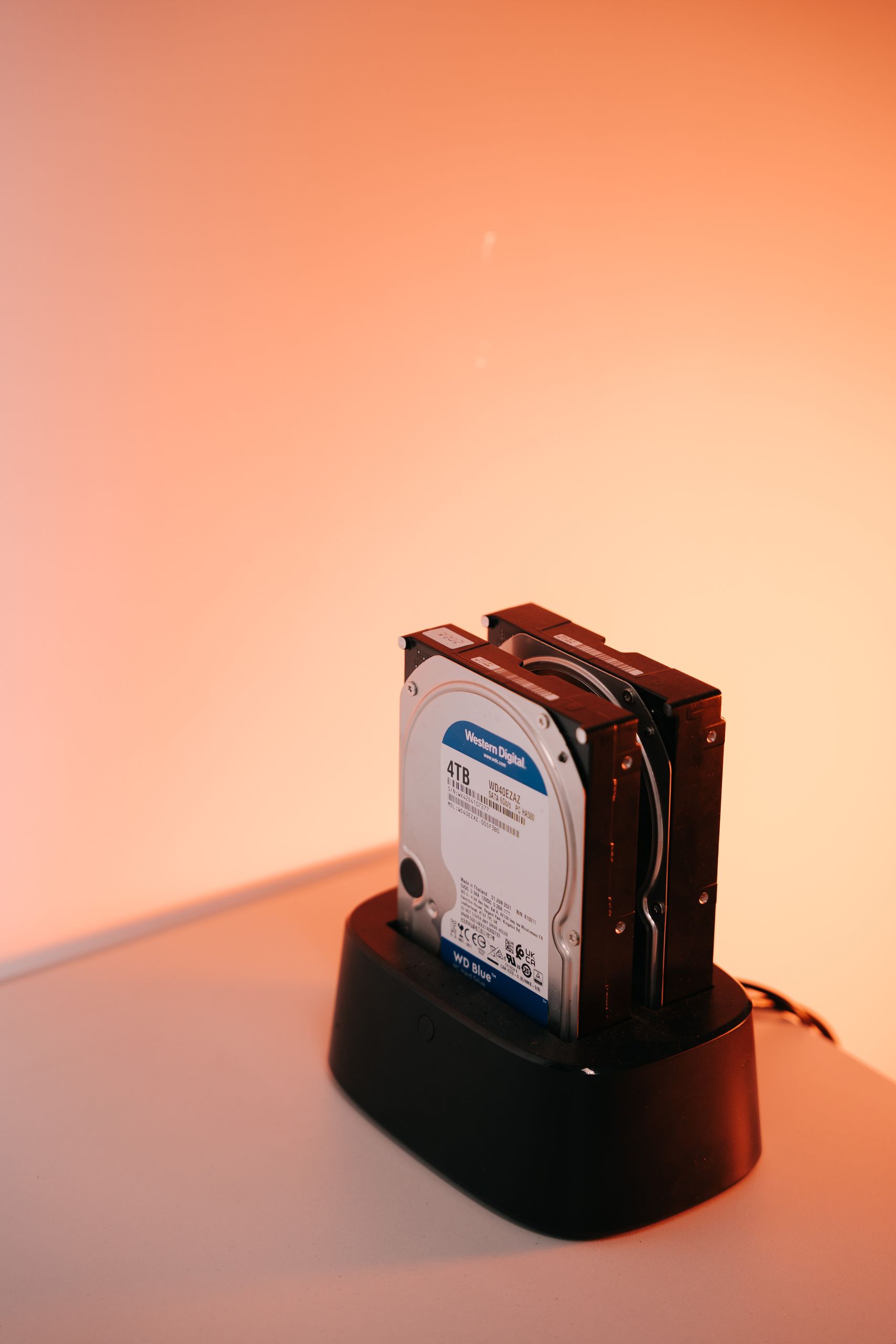
Here is the short version. Having a backup and having a backup that restores are two different things. Backups can fail quietly for months. The only proof a backup works is a test restore, where you pull a file back and open it. And at least one copy has to be out of reach of ransomware, because attackers go after backups on purpose. If nobody at your firm can name the date of your last test restore, you should run the 10 minute check below this week.
Prefer to watch? Here is the 7 minute video version.
“We have a backup” is not the same as “we are protected”
First, credit where it is due. If your firm set up a backup, you did more than a lot of small firms. That was the right instinct.
Here is the problem. A backup is not a set it and forget it tool. It is a job that runs every day, and jobs break. When a backup breaks, nothing looks different. No alarm. No error on your screen. The files on your server open just fine. The copy is the thing that quietly died, and you find out on the worst possible day.
Ransomware (software that locks your files until you pay) makes this worse. It goes after your project files. Then it goes after your backups, because a firm with a working backup does not need to pay. CISA, the federal agency that tracks these attacks, warns that many ransomware strains hunt for backups they can reach and then delete or lock them. One more catch: many attackers now copy your data before they lock it. A good backup gets your files back, but it does not stop them from leaking what they took. We cover that in our post on how ransomware groups target design and construction firms.
Design and construction firms are a real target. In a 2021 study of its own customers, the file platform Egnyte found that these firms were more than twice as likely to face ransomware as its customers in other industries. Nearly a third (31%) of the firms that got hit were hit again within 16 months. That data comes from Egnyte’s own customers, so do not read it as your exact odds. Read it as a sign that design files are worth a lot to attackers.
This is not a scare story to us. A civil engineering firm close to us got hit by ransomware. It took them down for three or four days. They were lucky. A firm with a dead backup is not down for days. It is down for weeks, or for good.
A backup that has never been restored is a theory, not a plan.
The four ways backups die quietly
Backups do not fail loudly. They fail in one of four quiet ways.
1. The backup stopped running
A software update broke it. A password changed. The backup drive filled up. The job has been failing every night since March, and the failure emails go to an inbox nobody reads. This failure is the easiest to catch.
2. The backup runs, but skips your project files
The backup is working. It is just backing up the wrong things. For example, let’s say your firm added a NAS (a shared storage box on your network) two years ago, and all your active projects moved there. If nobody added the NAS to the backup job, your backup is faithfully copying old desktop files while your real work sits unprotected. The backup reports success every night. It is telling the truth. It is just answering the wrong question.
The same thing happens with the cloud. Your firm moves projects to SharePoint, Egnyte, or Autodesk Forma, and everyone assumes the cloud handles backups. It might not. More on that below.
3. The backup has never been test restored
This one stings. The backup runs. It covers the right folders. But the copies are corrupt, or incomplete, or the restore fails when you finally need it. You cannot know until you try. A backup that has never been restored is a theory, not a plan.
4. The backup got hit along with everything else
Your backup box sits on the same network as your server. It uses the same admin password. Ransomware gets in, finds it, and wipes it. Now the original and the copy are gone at the same time. This is why “we have three copies” is not enough by itself. At least one copy has to be locked down or cut off from the network.
The 10 minute check any office manager can run
You do not need to be an IT person for this. You need 10 minutes and three questions. If you do not have access to the backup software, that is fine. Ask whoever manages it to walk through it with you. In fact, it is safer if everyday staff do not have admin rights to the backups.
- Step 1: Find the last successful run (3 minutes). When did the last successful backup finish? Not scheduled. Finished. Now compare that to how often it is supposed to run. Most firms back up at least once a day. So if the last good run is more than a day old, you have a problem. Every day since that run is work you could lose. A shrug is also a problem.
- Step 2: Confirm your project files are in it (3 minutes). Ask what folders and systems the backup covers. Then compare that to where your team saves work. Your NAS or file server. Your Revit, AutoCAD, and Civil 3D project folders. Your accounting files. Your cloud folders and your email. If active work lives somewhere the backup does not reach, that gap is your whole risk. One small tip: ask your bookkeeper to close QuickBooks at the end of the day, so the file is not in use when the backup runs.
- Step 3: Restore one file, the safe way (4 minutes). Pick one project file from last week. Restore it to a new folder on your desktop. Do not restore it to its original spot. Many backup tools default to “original location,” and some will overwrite the live file. That would swap your team’s current work for last week’s copy. Read the restore screen before you click. Then open the file. If it is a shared Revit model (a central model the whole team syncs to), open it with “Detach from Central” checked. That keeps the test copy fully separate from the real one. If it opens, congratulations, you just proved your backup works. Write down the date. That date is your proof.
Do this every month. Put it on the calendar like an invoice run.
Why CAD and BIM files make this harder
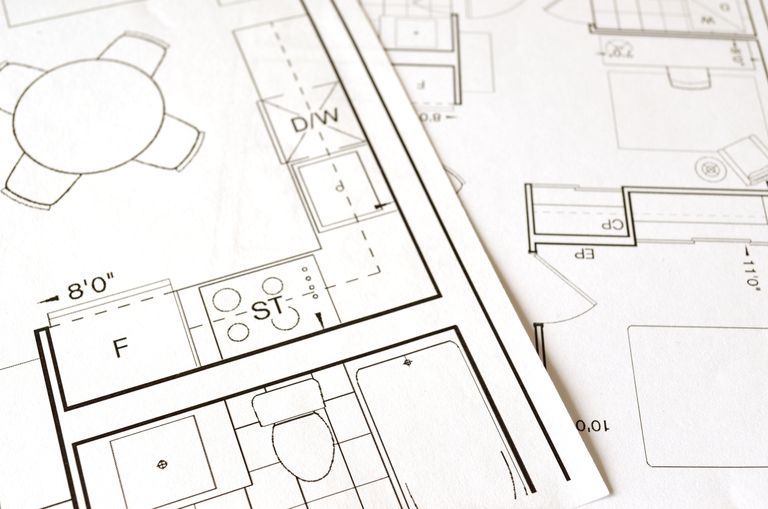
Design files are not like Word documents. They are huge, they link to each other, and they change all day long.
A Revit model can link to other models, CAD files, and even PDFs. Restore the main model without its links and it still opens, but those links show up as missing. Your views and sheets are incomplete until you track them down. So a real project restore means the whole project folder, not just one file.
Big files also stretch backup windows. A full copy of a large project set can take hours, which is why a good setup copies only what changed each night. And because your whole team hits the same shared storage all day, that storage is both your most important asset and your single point of failure. (It is also why your files can feel slow. We wrote about that in Why Revit and AutoCAD Run Slow Over a Network Drive.)
So a generic backup setup, the kind built for a dentist’s office, can fail a design firm without anyone noticing.
“Our files are in the cloud, so we are covered”
Maybe. Here is what cloud storage is not. It is not a backup on its own.
Platforms like SharePoint, OneDrive, Egnyte, and Autodesk Forma do protect you from a lot. OneDrive, for example, keeps version history. Microsoft 365 subscribers can also roll their whole OneDrive back to any point in the last 30 days. Dropbox keeps past versions for a set time too. That is real protection, and you should know how to use it.
But there are limits. The rollback window is short. If nobody notices a problem for six weeks, the clean version may be gone. One admin account controls everything, so if someone takes over that account, they control your files too. And the copy lives with the same company, under the same login, as the original. Your Microsoft 365 email has the same issue.
You should find out how long each platform keeps deleted and changed files. Then back up the data that matters to a separate place.
What a real backup setup looks like
Here is what protection is not. It is not one external drive plugged into the server. That drive sits on the same power, the same network, and the same desk as the thing it protects. Fire, theft, or ransomware takes both at once.
Here is what it is. You keep three copies of your data, on two different types of storage, with one copy offsite. Plain English: the original on your server, a copy on a local device, and a copy in the cloud or another building. This is what we call the 3-2-1 backup.
Then you make one of those copies untouchable. That means an offline copy (unplugged or cut off from the network) or an immutable backup (a copy that cannot be changed or deleted for a set time, even by an admin). CISA’s ransomware guide calls for offline backups for this exact reason. Without that locked copy, 3-2-1 protects you from fire and dead drives. It does not protect you from an attacker who can log into all three copies.
On top of that, a real setup has five habits:
- Versioning. You can go back to yesterday’s file, or last month’s, not just the newest copy. Ransomware encrypts files, and a basic backup copies the encrypted junk. Versions let you reach behind the damage, as long as the attacker cannot delete them too.
- A separate login for backups. Your backup system should not share a password with your server or Microsoft 365. Turn on MFA (a code from your phone on top of the password).
- A monthly test restore. Pull one real project file back to a safe spot and open it. Log the date.
- A bigger test once or twice a year. Restore a full project folder, links and all, and time it. Now you know how long a real recovery takes before you need one.
- A human watching it. Every failed job gets seen and fixed within a day, not discovered in a crisis. Proactive is better than reactive here, because reactive means finding out after the loss.
How much work can you afford to lose?
Ask yourself this. If your server died right now, how much work would your team have to redo? If the last good backup was last night, you lose today. If it was last Friday, you lose a week. This is what we call your recovery point.
The second question is how long you can be down before it really hurts. A day? Three days? This is your recovery time.
Most small firms have never said these numbers out loud. You should. They decide how often your backup needs to run and how fast your restore needs to be.
What this costs you if it fails
For example, let’s say a 10 person firm loses its file server on a Monday. No working backup. The team redraws what it can from prints and email attachments, and that eats the whole week. At 40 hours each, that is 400 hours. At a billing rate of $100 to $150 an hour, that is $40,000 to $60,000 of time that earns nothing. Then add the deadline you miss, and the client who now wonders about your firm. The redraw is the cheap part. The reputation is the expensive part.
Your clients trust you to deliver the plans, the design, or the building you promised. A working backup is part of keeping that promise.
FAQs
Where Aspen fits
We are Aspen IT Group. We handle managed IT for small architecture, engineering, surveying, and construction firms. Based in East Tennessee. Serving firms nationwide. Backups are the first thing we check in an IT checkup. Not because backups are fancy. Because they are the one thing that has to work on the worst day.
If you cannot name the date of your last test restore, you should find out where you stand. Give us a call for a free IT checkup, so you can get back to focusing on the work, not the technology.
Key takeaways
- A backup only counts if you have restored a file from it, so test one file every month and write down the date.
- Keep three copies on two types of storage with one offsite, and make one copy offline or immutable so ransomware cannot reach it.
- Cloud tools like OneDrive and Dropbox help, but they are not a separate backup on their own.
Can you name the date of your last test restore?
Our free IT Health Checkup looks at your backups, your security, and your network, and gives you a plain English report of what is solid and what is exposed. No cost, no pressure, and you keep the report either way.
Sources: CISA, #StopRansomware Guide; Egnyte, Architecture, Engineering and Construction Firms Twice as Likely to Face Ransomware Attacks (2021); Microsoft Support, Restore your OneDrive; Dropbox Help, Version history overview; Autodesk Help, Link PDF files or images in Revit; Autodesk Help, Open a workshared project independent of the central model; Autodesk Support, slow performance opening Revit files from a network drive



4 Comments