
Revit and Civil 3D Workstation Requirements for Design Firms
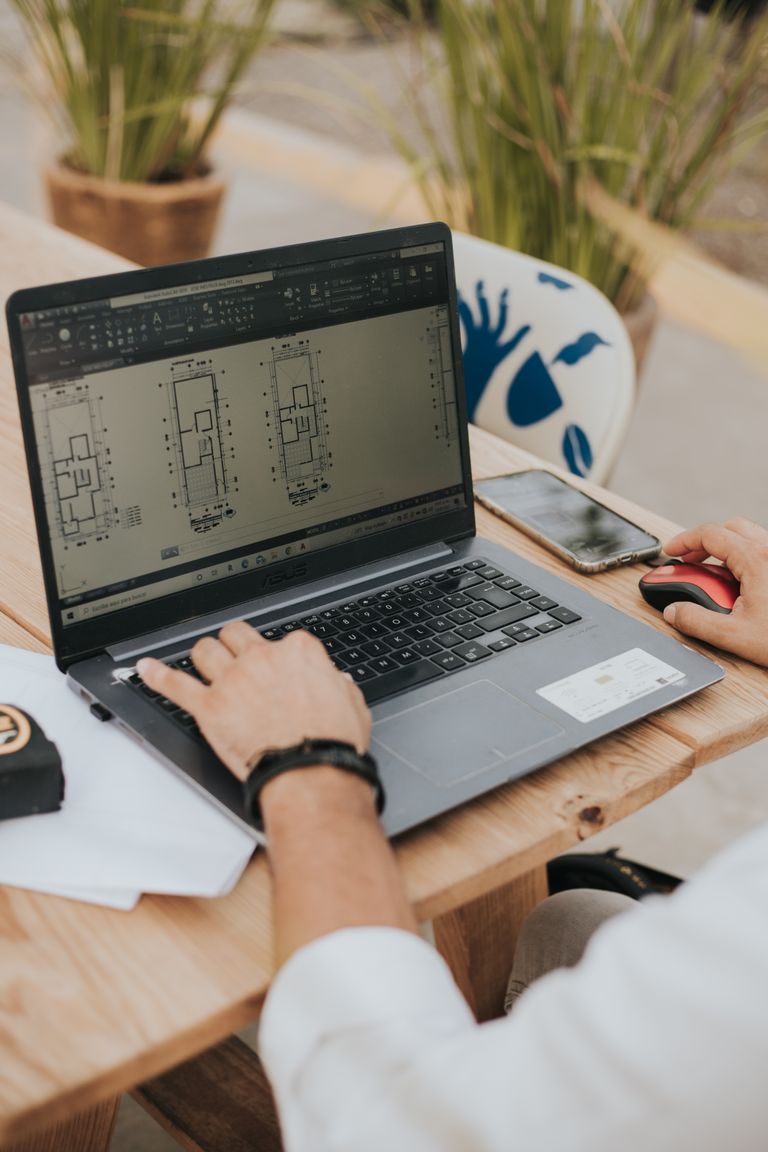
You spin the model and it stutters. You open a big view and the whole thing hangs. You have learned to wait and plan your coffee breaks around the load times. But maybe you have been blaming the software for something the machine cannot keep up with.
Here is the short version. Revit and Civil 3D are heavy programs that need the right hardware. The parts that matter most are a fast processor, plenty of memory, a solid graphics card, and a fast SSD drive. If your workstation is short on any of these, the software will feel slow no matter how clean your files are.
First, rule out the easy stuff
Before you blame the computer, check the other usual causes. Slow Revit can come from working directly off a network drive, from bloated files full of heavy imports, or from a network bottleneck. So first ask: is it slow for everyone, or just on this one machine? Is it slow on every file, or just one giant model?
If it is slow only on your machine while a coworker with a better computer flies through the same file, that points at the hardware. If it is slow for everyone, the problem is more likely the file or the network. That one question saves a lot of wasted money.
The parts that matter most are a fast processor, plenty of memory, a solid graphics card, and a fast SSD drive.
The four parts that matter for Revit and Civil 3D
Not every computer part matters equally for this kind of work. Some firms spend money on the wrong thing. Here are the four that actually move the needle.
- The processor’s single-core speed. It is tempting to buy a chip with lots of cores, but Revit does much of its work on one core at a time. Autodesk recommends the highest single core clock speed you can get. What matters most is how fast a single core runs, not how many cores you have. A high clock speed (measured in gigahertz) will feel snappier in Revit than a chip with tons of slower cores. This is called single-core performance, and it is the part to prioritize.
- Memory (RAM). RAM is your computer’s short-term work space. Run low on it and the computer starts shuffling things to the slow disk, and everything crawls. For modern Revit work, 32 gigabytes is a solid baseline, and big models really want 64 gigabytes. If your machine has 16 gigabytes and you work on large models, that is very likely a real bottleneck.
- The graphics card (GPU). The graphics card draws what you see and does the heavy lifting when you spin a 3D model. Most professional work runs well with 4 to 6 gigabytes of VRAM, and large or complex models benefit from 8 gigabytes or more. A weak or built-in graphics chip is a common reason 3D views feel choppy. Check that your card and driver appear on Autodesk’s certified graphics hardware list.
- A fast SSD drive. An SSD (solid state drive, no moving parts) is far faster than an old spinning hard drive. The fastest type, called NVMe, makes booting, opening programs, and loading files noticeably quicker. If your files still live on a spinning hard drive, that alone slows down every open and save.
Signs your workstation is the bottleneck
How do you know it is the machine and not something else? Watch for these signs. The computer is several years old and was a budget machine to begin with. It has 16 gigabytes of memory or less. The fan roars and the machine gets hot whenever you open a big model. 3D views stutter while flat 2D views are fine, which points right at the graphics card. The same file opens much faster on a coworker’s newer machine. Everything, not just Revit, feels sluggish, which often means an old spinning drive.
If several of those ring true, your workstation is probably the thing standing between you and a smooth day.

The hidden cost of a slow machine
A slow workstation does not feel like a big problem on any single day. It is just a few seconds here, a hang there. You get used to it, but add it up. For example, let’s say a slow machine costs a designer fifteen minutes a day in waiting and stuttering. That is more than an hour a week. Over a year, that is days of paid time, gone, watching load bars. And that is before you count the frustration, the lost focus, and the work that does not get done because the tool keeps getting in the way.
A good workstation is not a luxury for a design firm. It is a tool that pays for itself. You should not run your business on a computer that is fighting you all day, the same way you would not ask a framer to work with a dull saw.
Buy the right machine, not the most expensive one
You should not just throw money at the biggest, priciest workstation either. This is not “spend the most you can.” It is “spend on the parts that matter for your work.” A machine with a fast single-core processor, 32 to 64 gigabytes of memory, a decent graphics card, and an NVMe SSD will run Revit and Civil 3D well. It does not have to be the top-of-the-line model. Meanwhile, a machine that spent its whole budget on a flashy part you do not need, while skimping on memory, will still feel slow. Matching the machine to the actual work is the whole game. One more must: Autodesk lists 64 bit Windows 11 as the operating system for Revit 2027, so make sure any machine you buy or keep runs it. We cover that in our post on Revit 2027 and Windows 11. Three related questions have their own posts. If you are deciding who gets a laptop and who gets a desktop, read laptop or desktop for Revit and Civil 3D. If the computer is fine but a drawing crawls, read why Civil 3D runs slow. If one machine misbehaves while the others do not, read why the same software works on one machine but not another.
Common questions
We help you buy and run the right machines
Figuring out the right workstation for your firm, then keeping it running well, is the kind of thing our managed IT services handle for small architecture and engineering firms. Based in East Tennessee. Serving firms nationwide. We will tell you straight whether your slow Revit is the machine, the file, or the network, and if it is the machine, we will help you spend on the parts that actually matter.
If your workstations feel like they are fighting you, give us a call for a free IT checkup. We will look at what you have and tell you honestly where the bottleneck is.
Key takeaways
- Before blaming the software, rule out the file and the network. If a model is slow only on your machine but flies on a coworker’s newer one, the hardware is the bottleneck.
- Four parts move the needle for Revit and Civil 3D: a fast single-core processor (clock speed beats core count), 32 to 64 GB of memory, a real graphics card with 4 to 8+ GB of video memory, and a fast NVMe SSD.
- A slow machine is a hidden tax. A few seconds a day adds up to days of lost paid time a year. Spend on the parts that matter, not the most expensive box, so the tool stops fighting your team.
Is a slow workstation costing your team hours?
We figure out whether it’s the machine, the model, or the network, and fix it. No obligation, no sales pitch.
Sources: Revit 2027 system requirements (Autodesk); Certified graphics hardware for Revit (Autodesk); Hardware recommendations for Autodesk Revit (Puget Systems, a workstation builder)


6 Comments