
Civil 3D Running Slow? It Is Probably Not Your Computer
You bought a strong machine. It runs Revit fine. But open a big Civil 3D project and everything crawls. Hold on before you buy an even faster computer. The problem is probably in the drawing, not on your desk.
Here is the short version. Civil 3D often slows down because of the project, not the computer. Heavy surfaces, one giant drawing, and file bloat are common causes. Fix those first. If a clean project is still slow, then look at the workstation or the network.
First, why this is different from a slow Revit
Revit slowdowns are often about hardware or the central model. Civil 3D is its own animal. It chews through huge surfaces, survey data, and references in ways that punish a messy project more than a weak computer.
So if your machine handles other software fine but Civil 3D drags, that is your clue. The problem is probably in the drawing, not the box on your desk. That is good news, because drawing problems are usually free to fix.
Civil 3D usually runs slow because of the project, not the PC.
Cause 1: Surfaces that are too heavy
Surfaces are a common reason Civil 3D bogs down. A surface (the 3D model of the ground) can hold millions of points. Every time you move or edit, Civil 3D may have to redraw all of it.
For example: you imported a giant survey or a huge aerial dataset at full density. That surface is now dragging every pan and zoom, because the software is rendering far more detail than the screen can even show.
The fix is to lighten the surface while protecting your accuracy. Start with the safe steps. Add a boundary so Civil 3D only works the area you need, and use a lighter display style or hide the surface when you are not editing it. Simplifying the surface (removing points) can also help, but it changes the ground model. IMAGINiT, an Autodesk reseller, warns that you do not want to affect the accuracy of your surface. So only simplify where the detail is truly not needed, and check the result against the original. A lighter surface means a faster drawing.
Cause 2: One giant drawing holding everything
This is the classic Civil 3D mistake. Everything piled into a single, enormous drawing. The surface, the imagery, the alignments, the pipes, the sheets, all in one file. So every time you open it, you load all of it.
The better way is to break the project apart and link the pieces using data shortcuts and external references (Xrefs). In plain English: you put the big, heavy stuff, like the main surface and the aerial imagery, in their own master files. Then your working drawings reference that data instead of containing it.
A data shortcut is a lightweight link to data that lives in another file. An Xref is a drawing pulled into another drawing as a background. Both let many drawings share one copy of the heavy data instead of each drawing carrying its own bloated copy. Your working files get small and fast, the heavy data lives in one place, and when the survey updates, everyone gets it from the one master file. Set this up early on big projects, not after everything is already slow.
Cause 3: File bloat that builds up over time
Drawings get fat. Months of edits leave behind junk: unused styles, leftover layers, old blocks, broken bits in the file’s database. All of it adds weight and slows things down.
Civil 3D has two cleanup tools that fix most of this, and they are free. Purge removes unused stuff from the drawing, like styles, layers, linetypes, and blocks nobody is using. It can also delete zero length lines and empty text. It shrinks the file too. Audit checks the drawing’s internal database for errors and fixes them, which Purge does not do.
A drawing that has been passed around and edited for six months can get noticeably smaller and faster after a round of Purge and Audit. Make this routine housekeeping, not a last resort.
Cause 4: Data far from the origin
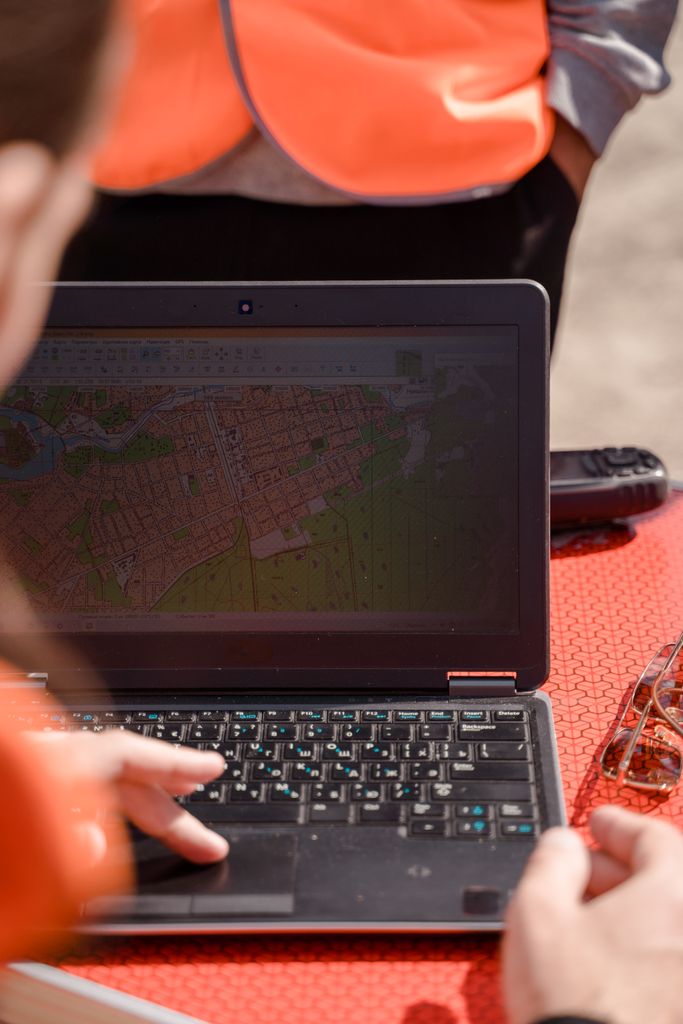
Autodesk says objects placed very far from the drawing origin (the 0,0 point) can cause performance problems and precision errors in AutoCAD. Real world survey coordinates, like state plane, are the common case.
Here is the catch for civil work. Your project sits on real survey coordinates on purpose. Move it, and it may no longer line up with your surveyor’s points, other firms’ files, or GIS data. Autodesk’s own guidance names Civil 3D and Map 3D as the preferred tools for precise work at large coordinates, because they handle those values for you. So do not move a Civil 3D project off its coordinates to chase speed. If you suspect this cause, talk to your survey lead or CAD manager first.
Cause 5: Reference surface settings
One more knob worth knowing. When you reference a surface from another file, Civil 3D gives you a choice: save the surface’s geometry into your drawing, or not.
Save the geometry and the file is bigger but opens fast, because the shape is already there. Do not save it and the file is smaller but opens slower, because Civil 3D has to go check the source every time. Neither is “right.” Pick based on whether your pain is open speed or file size.
When it really is the computer
We have focused on the project because that is where the slowness usually hides. But we will be honest: sometimes the machine really is too weak.
If you cleaned the drawing, split the data, and ran Audit and Purge, and it is still slow, the hardware may be the limit. Civil 3D wants a strong processor, plenty of memory, and a real graphics card. We cover that side in our post on whether your workstation is slowing down Revit or Civil 3D. And if the drawing only slows down when it lives on a shared drive, that is a network problem, not a hardware or drawing problem, which we cover in our post on Revit and AutoCAD running slow over a network drive.
The trick is knowing which one you are facing. You should not throw a new computer at a problem a cleanup would fix. But you also should not waste days fighting a machine that truly cannot keep up. Knowing the difference is where a second set of eyes helps.
A quick cleanup checklist
Try these in order before you blame the computer.
- Lighten your surfaces: add boundaries, use lighter display styles, and simplify only where you have checked it is safe.
- Split heavy data: move it into master files and pull it in with data shortcuts and Xrefs.
- Run Audit and Purge: clear bloat and fix internal errors.
- Set your reference surface geometry: choose faster opening or smaller file based on your pain.
- Then look at hardware or the network: only after the project is clean.
The first three steps are free, so start there. Proactive cleanup beats living with a slow project every single day.
Frequently asked questions
We will get your Civil 3D projects running right
A slow Civil 3D project is frustrating, and the fix is usually a cleaner setup, not a bigger budget. The trick is knowing whether the problem is the drawing, the data strategy, the network, or the machine. We help you find out which.
We do not clean your drawings or set your data shortcut strategy. Your CAD lead owns that. Our managed IT services keep the other side running for small engineering firms: fast networks, a shared drive that keeps up, workstations that fit the work, and backups behind it all. Based in East Tennessee. Serving firms nationwide. So your team can focus on the design, not the spinning wheel. If your Civil 3D projects are dragging, give us a call. We will check whether the network or the computer is part of the problem, and tell you straight.
Key takeaways
- Civil 3D usually runs slow because of the project, not the computer. Heavy surfaces, one giant drawing holding everything, file bloat, and data far from the origin are the usual culprits.
- Most fixes are free. Lighten oversized surfaces, split heavy data into master files linked by data shortcuts and Xrefs, and run Audit and Purge to clear bloat and fix internal errors.
- Only look at hardware or the network after the cleanup. If a clean, well-organized project is still slow, then the machine or the shared drive may be the limit. Knowing which one saves you both wasted hours and a wasted purchase.
Civil 3D projects dragging and not sure why?
We find out whether it’s the drawing, the data, the network, or the machine, and fix it. No obligation, no sales pitch.
Sources: Civil 3D: Slow Performance in Large Data Sets (IMAGINiT); To Work With Surface References (Autodesk Civil 3D); Purge Dialog Box (Autodesk); Working with Large Coordinates in AutoCAD (Autodesk); Improving Civil 3D Performance (Autodesk)


3 Comments