

VPN vs. Remote Desktop: Which One Is Right for a Design Firm?
Your team needs to work from home, from a job site, and from the road, so you go looking for a way to let them reach the office. You keep running into two terms, VPN and remote desktop, and picking the wrong one for CAD work will leave your team staring at a frozen screen.
Here is the short version. A VPN connects a remote computer to your office network, so you can reach files as if you were sitting in the office. A remote desktop lets you control an actual computer at the office from wherever you are, so the file work happens on that machine and only the screen travels to you. Do not edit big live Revit models over a VPN. Autodesk documents that this causes slow syncs, crashes, and model corruption. A remote desktop fixes the file speed problem, but it comes with a graphics tradeoff. And if your models already live in Autodesk Docs, you may not need either one. Whatever you pick, lock it down and check your license first.
Start with a better question: where do your files live?
Most people ask “VPN or remote desktop?” That is the second question. The first question is simpler. Where does the model actually sit?
If your central models sit on a server or a NAS in your office, the answer looks one way. If they sit in Autodesk Docs in the cloud, the answer looks completely different. Same firm, same software, totally different setup.
What a VPN actually does
Start with the VPN, in plain English. A VPN (virtual private network) builds a secure tunnel between your remote computer and your office network. Once it is on, your laptop at home acts like it is plugged in at the office. You can reach the shared drive, the server, and internal systems as if you were there.
That sounds perfect, and for a lot of things it is. Email, internal tools, small documents, reaching the accounting system. A VPN is a clean way to extend the office to wherever you are.
Here is the catch for design firms. With a VPN, the file’s data still has to travel to your computer over the internet. For a small document, no problem. For a big Revit model you are editing live, it is a disaster.
This is not our opinion. Autodesk’s own support article on file based worksharing over a WAN or VPN lists what happens: performance degradation, slow or failed syncs to central, fatal and unrecoverable errors, freezing, crashing, and model corruption. File based worksharing was built for one local network, not for the open internet. It is the same problem as working off a slow network drive, except now the slow connection is the whole internet.
One more VPN trap that has nothing to do with speed. When people cannot work live, they start copying files down to the laptop instead. Two people copy the same file. Both make changes. One save wipes out the other, and a day of drafting is gone. If your team is grabbing local copies, you need a real checkout rule, not the honor system.
So a VPN is the right tool for reaching email and normal files. It is the wrong tool for editing big live models.
What a remote desktop actually does
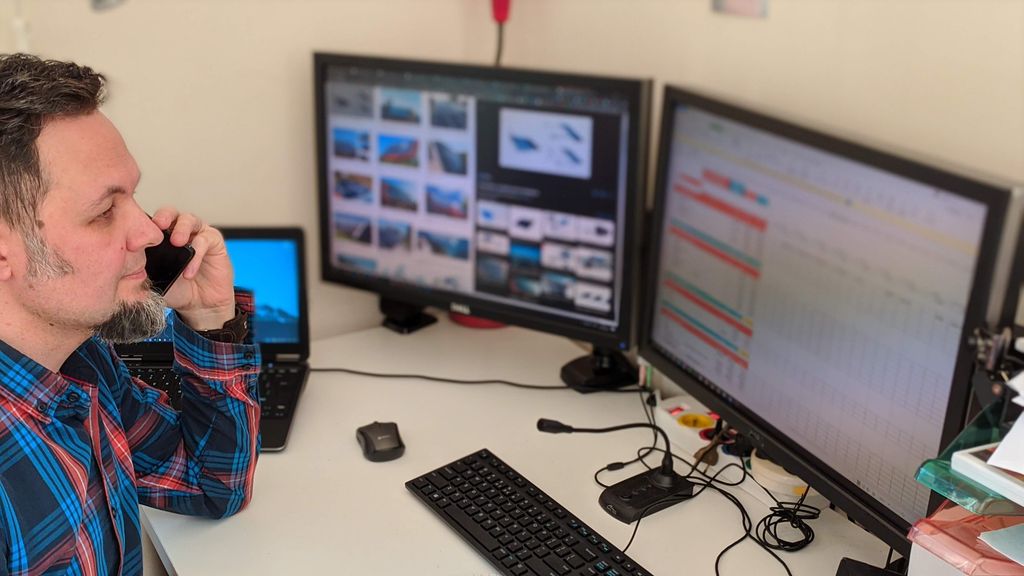
Now the other approach, which is the opposite idea. A remote desktop lets you take control of a computer sitting at your office, from any other device. You see its screen, you use its mouse and keyboard, but the work happens on that office machine. Only a picture of the screen travels to you.
For file speed, this is the fix. The big Revit model never crosses the internet. It stays right there on the office computer, next to the files, on the fast office network. Opening the model is fast. Syncing to central is fast. You are just looking at a live picture of that machine from your laptop on the couch.
For example, let’s say your project manager is at a job site with a basic laptop. They remote into their workstation back at the office and open the full Revit model on it. The model loads at office speed, because the file never left the office.
Remote desktop makes your files fast. It does not make your graphics fast. That is the tradeoff nobody tells you about before you buy.
The catch with remote desktop
Here is where most articles on this topic stop, and where we are going to be straight with you. Remote desktop makes your files fast. It does not make your graphics fast.
Autodesk states that hardware acceleration is not a supported feature over a remote desktop session. In AutoCAD, the option to turn it on is greyed out over Citrix, RDP, and other remote systems. In Revit, you may get the warning “Hardware Acceleration disabled. Software emulation mode is in use.”
In plain English: your graphics card (the part that draws 3D views) may sit out the session. The software falls back to drawing everything with the CPU instead. 2D drafting usually still feels fine. Spinning a shaded 3D model does not.
How bad this gets depends on the machine, the driver, the version of Windows, and which remote tool you use. Some setups run better than others. That is exactly why you should test it with a real project model before you promise your team it will work. If your people live in 3D views all day, plain Microsoft Remote Desktop is often not enough. There are remote tools built for graphics work that handle this much better.
If your models are already in the cloud, you may not need either
Here is the option the VPN vs. remote desktop debate usually skips. Autodesk has its own answer for teams spread across locations. Revit Cloud Worksharing, through Autodesk Docs and BIM Collaborate Pro (now called Forma Data Management and Forma Design Collaboration), keeps the central model in the cloud instead of on your office server. Team members open the model over a normal internet connection, on their own machine, running natively. No VPN. No remote desktop. Full local graphics.
Autodesk’s own remote access guidance for Revit leads with this, not with remote desktop. It also allows multi firm collaboration, which matters if you share models with a structural engineer or an MEP consultant.
It is not free, and it is not right for everybody. It is a subscription cost, it changes how your team works day to day, and moving live projects into it takes planning. But if you are about to spend money on remote access anyway, you should price this next to it. A lot of firms buy a workaround when the real fix was on the table.
What about a cloud PC?
A cloud PC is a powerful Windows computer that lives in a data center, which you rent and control like a remote desktop. Microsoft sells this as Windows 365 and Azure Virtual Desktop. There is no physical box in your office to maintain. Now here is the part that gets firms in trouble, and we want to be blunt about it.
A cloud PC is not just a remote desktop with the hardware moved. A remote desktop works because that office machine sits right next to your files. A cloud PC does not. If your central model is still on the NAS in your office closet, that cloud PC has to reach it across the internet, which is exactly the slow, corruption prone setup Autodesk warns about. You did not solve the problem. You moved it.
A cloud PC only makes sense if the data moves too. That means the models live in Autodesk Docs, or a cloud file service, or a cloud file server you set up alongside it. Move the machine and leave the files behind and you will have a bad month.
Two more things to check before you get excited. First, a standard cloud PC has no real graphics card. Microsoft sells GPU enabled Windows 365 plans for graphics heavy work like 3D modeling, and those are a separate, pricier tier. They are offered for Windows 365 Enterprise and Flex through a Microsoft account team, not the web store, so a small firm on Business plans may not get one easily. A basic plan will not run Revit well. Second, read the licensing section below, because this is where cloud PCs bite people.
Check your Autodesk license before you build anything
This is the boring section that saves you real money. Read it anyway. Autodesk treats running its software in a virtual environment as a licensing question, not just a technical one. If you have single user subscriptions, Autodesk Flex, or an enterprise agreement, virtual use is generally allowed, with only the assigned user on that license at a time. If you have multi user (network) subscriptions, those cannot be virtualized for desktop use. Autodesk’s terms do allow multi user access over a LAN or a VPN, but not virtualized desktops.
There is a second trap. Most Autodesk desktop products are not officially supported on Windows Server using Remote Desktop Services. So the idea of “let us put four drafters on one big server” is usually a dead end.
Autodesk audits. Being out of compliance is not a slap on the wrist. Before you buy cloud PCs or build a virtual setup, check what your license actually allows. If you are not sure what you have, we will look at it with you.
Free download: Work From Home Revit Guide
How to run Revit and CAD from home without lag, lost work, or locked files.
The simple way to choose
Here is the rule that cuts through it all. Ask what the person needs to do remotely, and where the files sit.
- Models already in the cloud: let people work natively and skip all of this. That is the cleanest answer when it fits.
- Models on your office server, heavy CAD work: use a remote desktop into a machine at the office, and test the graphics with a real model before you promise anyone it will work.
- Email, internal tools, and normal documents: a VPN is clean and simple.
- Many firms use both: they connect with a VPN, then control a workstation by remote desktop through it. The two are not enemies. They solve different parts of the problem.
The part nobody can skip: security
Here is where we have to be firm, because this is where firms get hurt. However you let people in from outside, you are opening a door into your network. If that door is not locked properly, attackers will find it.
Remote desktop is dangerous when it is exposed straight to the internet. CISA names brute forcing unsecured remote desktop endpoints as one of the most common ways attackers get their first foothold, along with phishing. Attackers scan for open remote desktop ports around the clock. You should never put a remote desktop directly on the internet.
The safe way is the way CISA recommends. Put remote access behind a secure gateway or a VPN, require multifactor authentication (MFA, a second step beyond the password), limit who can connect, and log the attempts. Two honest warnings about that advice.
A VPN is not a magic shield. VPN appliances are some of the most attacked devices on the internet right now. CISA’s catalog of vulnerabilities that are actively being exploited is full of remote access gear from major vendors. A VPN box you installed and never patched is a door, not a wall. Whoever runs your IT needs to be patching that thing on a schedule and watching for vendor advisories.
And “only the screen travels” is not a security promise. By default, a remote desktop session will share your clipboard and can map your local drives into the session. Files can move both ways. If you are relying on remote desktop to keep project data off personal laptops, those settings have to be turned off on purpose.
The convenience of remote access is only worth it if it does not become the hole someone walks through. Set it up secure, or do not set it up at all.
The small stuff that trips firms up
None of these will make a headline. All of them generate support tickets. The office machine has to stay on and awake, forever. Windows updates reboot it at 2am and nobody can get in until someone drives to the office. Only one person can use a Windows workstation by remote desktop at a time, so if someone remotes in, that desk is unusable. Windows Home cannot host a remote desktop session at all, only Pro.
Dual monitors, plotting to the office plotter, and color accuracy all need to be set up, they do not just work. A SpaceMouse or other 3D input device needs extra configuration to pass through, and 3Dconnexion says a remote setup is not the recommended way to use one. And a job site on a weak cell signal will feel every bit of that latency, because remote desktop feels lag on every click, while a slow file copy just takes longer. Proactive is better than reactive. Plan for these before your team hits them.
Frequently asked questions
What this means for your firm
Letting your team work from anywhere is great, until a slow setup kills productivity or an open door lets in ransomware. Every hour a designer spends waiting on a laggy model is a billable hour you do not get back, and one corrupted central model can put a submittal deadline at risk. The trick is matching the right tool to the work, checking what your license allows, and locking it down properly.
Our managed IT services help small architecture and engineering firms figure out where their files should live, whether they need a VPN, a remote desktop, cloud worksharing, or some mix, and then build it so it is both fast and secure. Based in East Tennessee. Serving firms nationwide. We will tell you when the cheaper answer is the right one, too.
If your remote setup is slow, or you are not sure it is safe, give us a call for a free IT checkup. So your team can focus on the work, not on a frozen screen.
Key takeaways
- Ask where your files live before you ask VPN or remote desktop. If your models are already in Autodesk Docs, people can work natively and skip both.
- Never edit big live Revit models over a VPN, because Autodesk documents slow syncs, crashes, and model corruption. Remote desktop fixes file speed, but hardware acceleration is not supported in a remote session, so test your 3D views first.
- Security and licensing are not optional. Put remote access behind a gateway or VPN with MFA, keep that gateway patched, and check your Autodesk license before you build a virtual setup.
Need your team working on CAD from anywhere, safely?
We set up remote access that is fast for heavy CAD work and locked down against ransomware. We will also tell you if the cheaper answer is the right one. No obligation, no sales pitch.
Sources: Revit file based workshared project displays poor performance when accessed over WAN / VPN (Autodesk); Hardware acceleration is unavailable in AutoCAD Products over Citrix or other remote access system (Autodesk); Revit hardware acceleration shows as disabled in a virtual environment (Autodesk); Options for Remote Access in Revit (Autodesk); Virtual environments when using Autodesk software (Autodesk); Terms of Use: Offering Types and Benefits (Autodesk); Weak Security Controls and Practices Routinely Exploited for Initial Access, AA22-137A (CISA); Known Exploited Vulnerabilities Catalog (CISA); GPU Cloud PCs in Windows 365 (Microsoft); 3Dconnexion products and remote computing environments (3Dconnexion)


10 Comments