

Your Consultant Is on Revit 2025 and You Are on 2027. Now What?
You are on Revit 2027. Your structural consultant is still on 2025, and now it looks like nobody can open anybody’s model without breaking it. There is a way out, and it is simpler than you would think.
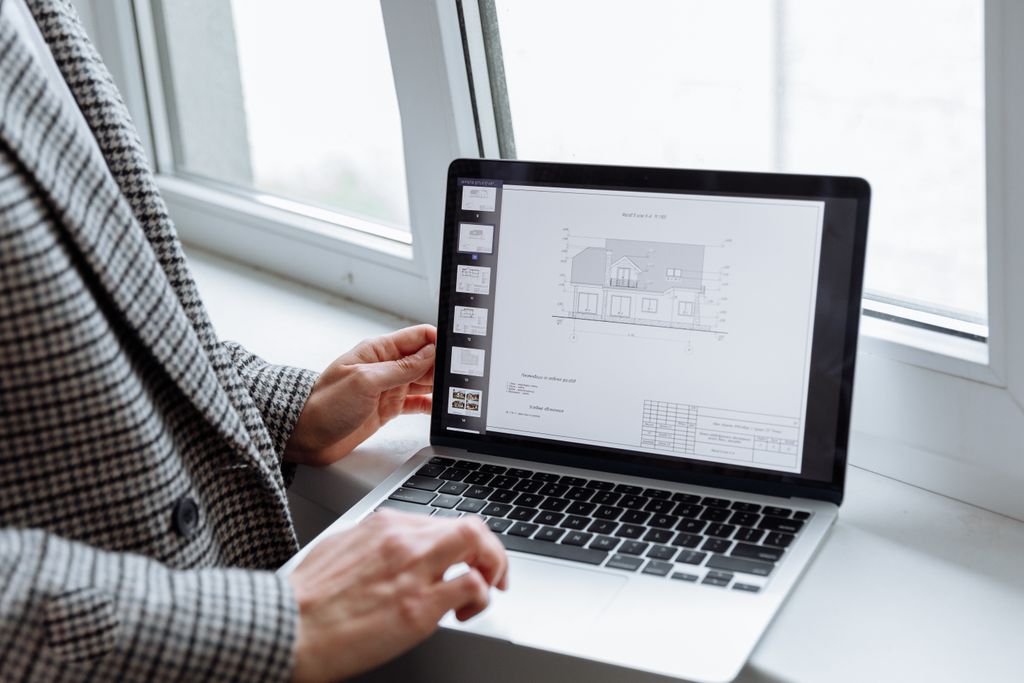
Here is the short version. Revit only moves one way. A newer version can open an older file, but saving it turns that file into a newer file the old version can no longer open. There is no true “save as older version.” You do not need one. You can link their 2025 model into your 2027 model as a reference. Revit upgrades that link in memory only, for that session, and never touches their file on disk. That covers most consultant coordination. If you need to work inside the same file at the same time, match the version instead and run 2025 for that job. Across two firms, that also means Revit cloud worksharing, which is a paid subscription for each user. If you can do neither, trade IFC files. And going forward, set the version at kickoff.
Why you cannot just hand the file back and forth
Start with the rule that causes everything else. Revit is not backward compatible.
A newer version of Revit can open a file from an older version. But opening it upgrades it. Once you save, it is a new version file, and the old version cannot open it anymore. Autodesk says it flatly in their own support article: there is no feature to save a Revit model to an older file format.
So picture the bind. You are on 2027. They are on 2025. If you open their 2025 model and save it, you just turned their file into a 2027 file they are locked out of. If you send them your 2027 model, they get an error that the file was saved in a later version and cannot be retrieved.
Linking is a different thing, and it behaves differently. We cover the broader upgrade rules in our post on managing Autodesk version upgrades. This post is about the specific bind of a partner who is behind you.
Linking is not opening. Link their model and Revit upgrades it in memory only. Their file on disk never changes.
The first fix: link their model, do not open it
For most consultant coordination, this is the answer.
When you add their 2025 model to your 2027 model as a Revit link, Revit will warn you that the link needs an upgrade. Say yes. Revit upgrades it in memory for that session only. Autodesk’s help puts it plainly: “the changes to the linked model are temporary; they are not saved when you save the host model.”
Their file on disk stays a 2025 file. They open it Monday morning and nothing happened to it. You get their columns, their beams, their ductwork, live in your model, and you coordinate against it like normal.
For example, let’s say your architect team is in Revit 2027 and your structural engineer is in 2025. They drop their model on your file share every Friday. You link it. You check your grid against their columns, you catch three clashes, you send them markups. Nobody installed anything. Nobody broke anybody’s file.
Three things you should know before you rely on this:
- It runs one direction only. You on 2027 can link their 2025 model. They on 2025 cannot link or open your 2027 model at all. You can see their work, but they cannot see yours, so you still owe them an IFC or a DWG. It is not a mutual standoff. It is a one way problem, and you are on the good side of it.
- Revit upgrades that link again every time you open the host model. On a small model you will not notice. On a large one, opening gets slow and stays slow all project. If your team watches a progress bar every morning, that is your signal to match the version instead.
- Linking is not the same as working in one file together. If your two firms need to be inside the same shared model at the same time, linking will not do it. Read the next section.

When linking is not enough: match the version for that project
If you need a real shared model, or the link is too slow, you should match their version. You do not have to be on 2027 for this job. You can run 2025 for it.
One more piece first. Two firms in two offices cannot share a normal central model on a file server. Autodesk warns that file based worksharing over a WAN or VPN leads to poor performance and crashes. To share one live model across firms, you need Revit cloud worksharing. That runs through BIM Collaborate Pro (now called Forma Design Collaboration). It is a paid subscription for each user, at both firms. If that is not in the budget, linking or IFC is your answer.
Revit installs side by side. Autodesk confirms multiple releases can live on one computer at the same time, and it costs nothing extra. Your 2027 stays put for your other work. You install 2025, run the job there, and everyone speaks the same language. Before you do that, check four things:
- Have you already modeled in 2027? If yes, stop. You cannot bring that model down. The one way rule applies to your own file too. Matching down only works if you have not really started. Discovering this three weeks in is the expensive way to learn it.
- Do you have the license? Autodesk gives subscribers the current version plus three versions back. With 2027 current, you can install 2026, 2025, and 2024 at no extra charge. But that window slides every April. If your consultant is four or more versions behind, installing their version is not a legal option and you need IFC instead. Check your Autodesk Account first. It takes 30 seconds.
- Match the update, not just the year. To share one central model, Autodesk says everyone must run the same release. Matching the update too is a safe habit, so agree on the exact update.
- Know what does not come down with you. The one way rule applies to families (.rfa) and templates (.rte) too. Your 2027 office template does not open in 2025, and neither does any family you built there. Every plugin you use (Enscape, your Bluebeam tools, your analysis links) needs a 2025 build installed too. Plan for a day of setup, not an hour.
If you cannot match: coordinate through IFC
Sometimes matching is off the table. Maybe the license window rules it out. Maybe the versions are too far apart. When you cannot share native files, you trade a neutral one.
That format is IFC (Industry Foundation Classes, an open file type that different BIM tools and versions can all read). You export your model to IFC. Your consultant links that IFC into their older Revit as a reference. It works in both directions, which is what makes it the answer when the consultant needs to see your model.
Two warnings, because IFC fails in a predictable way. First, it is a coordination copy, not a live model. Some of the smart Revit data does not survive the trip. Good for seeing each other’s work and running clash detection, not the same as native.
Second, placement is where it actually breaks. A linked IFC can land far from where it belongs. Autodesk documents cases where Revit ignores the site offset stored in the IFC, so the link has to be moved into place by hand. Agree on a shared origin with your consultant before the first file moves, and check the first exchange in a viewer before anyone coordinates off it.
One more distinction worth knowing. Link IFC keeps the reference connected, so it updates when they send a new file. Open IFC makes a one time snapshot that never updates. You almost always want link. We dig into this open format approach in our post on open BIM vs. closed BIM.

Other paths for lighter needs
Not every collaboration needs a full model. Match the answer to what you actually need.
If your consultant only needs to see your 2D drawings, export plan views to DWG. An older Revit brings those in with no trouble. It is not the model, but for plenty of coordination it is all anyone needed.
If the goal is clash detection across everyone’s models, a coordination platform can combine models from different versions in one place. Two caveats. Navisworks style workflows need a version matched exporter installed on each authoring seat, so that is still a setup job. And these are paid tools with real onboarding. Worth it on a big project, overkill on a small one. We compare them in our post on Revizto vs. BIM Collaborate Pro vs. Trimble Connect.
The option that usually is not the answer: make them upgrade
The first instinct is often, “just tell them to upgrade.” Sometimes that works. Don’t count on it though.
Your consultant has reasons for being on 2025. They likely have other active projects locked to that version, since upgrading is one way for them too. Forcing them to jump could break their other work.
If they can upgrade and it does not hurt their other jobs, great. Treat that as a bonus, not the plan.
When matching down is the wrong call
We just spent a section telling you to match down. Here is the honest other side, because this advice is not right for everyone.
The owner may have already decided. On institutional, public, and larger private work, the BIM exhibit or BIM Execution Plan sets the software version. AIA’s BIM documents (E203, G202, and the newer E202 and G203) exist for exactly this. If the project documents name a version, matching down to a consultant may put you out of compliance with a contract you signed. Read the exhibit before you install anything.
You are now running two of everything. Two Revit versions, two content libraries, two sets of plugins, two office templates. Staff will fumble which is which. That is a real cost, and any consultant who tells you matching down is free is not taking that into account.
Think about the archive now, not at closeout. If the job runs in 2025 and closes in 2025, your record set is a 2025 file. Five years from now, 2025 is long past your previous version rights, and nobody at your firm can open the model behind a set of drawings your seal is on. That is an E&O problem hiding in a software decision. Decide at kickoff what version the archive lives in, and keep a PDF and DWG record set alongside the model no matter what.
So matching down is our recommendation, not a law of nature. It is the right default for a small firm with no owner mandate. It is the wrong call if your contract says otherwise or your model is already built.
The real fix: decide the version at kickoff
Here is what prevents the whole mess next time. The Revit version is a project decision, and it belongs at the start, not three weeks in. At kickoff, with every firm on the project, agree on four things and write them into the BIM deliverables or the contract:
- The release and the update everyone will run, not just the year.
- A shared origin and coordinate setup, so links and IFC land in the right place.
- Who exports what, in what format, on what schedule.
- What version the final archive lives in, so the record set is still openable years from now.
That is a five minute conversation. It beats a week of workarounds in the middle of the job. Proactive is better than reactive, every time. You do not have to chase the newest Revit the day it ships, and you do not have to force your partners to either. You just have to agree, up front, on which version this team is speaking.
Frequently asked questions
What this means for your firm
A version standoff does not show up on an invoice, but you pay for it anyway. It is the week your team spends emailing files back and forth instead of coordinating. It is the clash nobody caught because the models never got in the same room. It is the awkward call with a consultant that starts the relationship off wrong.
We do not run your Revit models or set your BIM standards. Your team and your BIM lead own that. What we handle is the machine side. Our managed IT services help small architecture and engineering firms install Revit versions side by side, track which versions your licenses cover, keep plugins matched to each version, and keep the files and backups behind your projects running. Based in East Tennessee. Serving firms nationwide.
If a consultant on a different Revit version is holding up your project, give us a call for a free IT checkup. We will look at your Revit installs and licenses, and help you get ready for the next version gap. So your team can focus on the design, not on who is on which release.
Key takeaways
- Link, do not open. A newer Revit can link an older consultant model, and Revit upgrades that link in memory only, leaving their file untouched. This is one directional. You can see their model. They cannot see yours, so you still owe them an IFC or a DWG.
- If you need a real shared model, match the version. Revit installs side by side at no extra cost, and Autodesk gives you the current release plus three back. But you cannot match down after you have already modeled in the newer version, your families and templates do not come down with you, and the owner’s BIM exhibit may have already set the version for you.
- Prevent it next time at kickoff. Agree on the release, the update, the shared coordinate setup, and what version the archive lives in, and put it in the BIM deliverables.
A consultant on a different Revit version holding up your project?
We get everyone working together fast, and set a version plan so it does not happen again. No obligation, no sales pitch.
Sources: Backward compatibility of Revit with earlier releases (Autodesk); Is it possible to convert or downgrade an RVT file to an older version? (Autodesk); About Adding Links that Require an Upgrade (Autodesk Revit Help); Available previous product versions (Autodesk); How to work with multiple versions of Revit installed on one system (Autodesk); Multiple versions of Revit on one machine without additional cost (Autodesk); Local File is Not Compatible (Autodesk Revit Help); About Linking to IFC Files (Autodesk Revit Help); IFC files not linked at the expected position in Revit (Autodesk); Poor performance or crashes in a file based workshared project over a WAN or VPN (Autodesk); BIM Collaborate Pro (Autodesk); What’s New in Revit 2027 (Autodesk); AIA BIM Execution Plan and BIM exhibit documents (AIA Contract Documents)




4 Comments